
NCL Home>
Application examples>
Plot techniques ||
Data files for some examples
 eqn_4.ncl Two ways of drawing a
complicated equation. The first method places the text manually in
ndc coordinates. This code is easily decipherable. The second method
creates a string using function codes. This can then be easily moved
anywhere on the plot, but the code is harder to read.
eqn_4.ncl Two ways of drawing a
complicated equation. The first method places the text manually in
ndc coordinates. This code is easily decipherable. The second method
creates a string using function codes. This can then be easily moved
anywhere on the plot, but the code is harder to read.
 eqn_5.ncl Two more equations that
document a squared root and an integral.
eqn_5.ncl Two more equations that
document a squared root and an integral.
 eqn_6.ncl Mimic the formal definition
of liquid water path shown in the
AMS Glossary.
eqn_6.ncl Mimic the formal definition
of liquid water path shown in the
AMS Glossary.
Example pages containing: tips | resources | functions/procedures
NCL Graphics: Equations
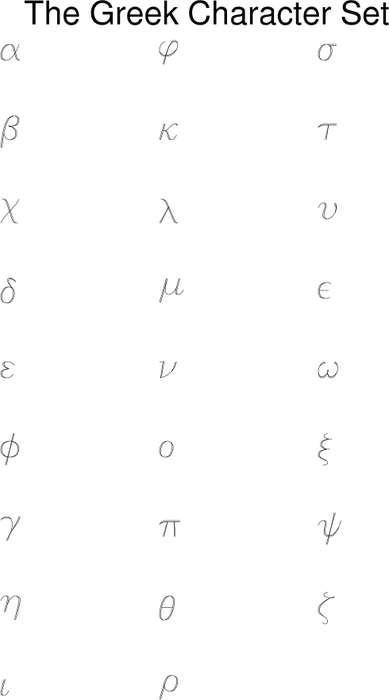
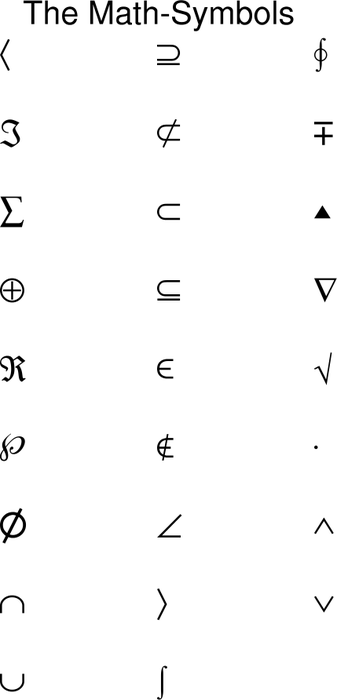
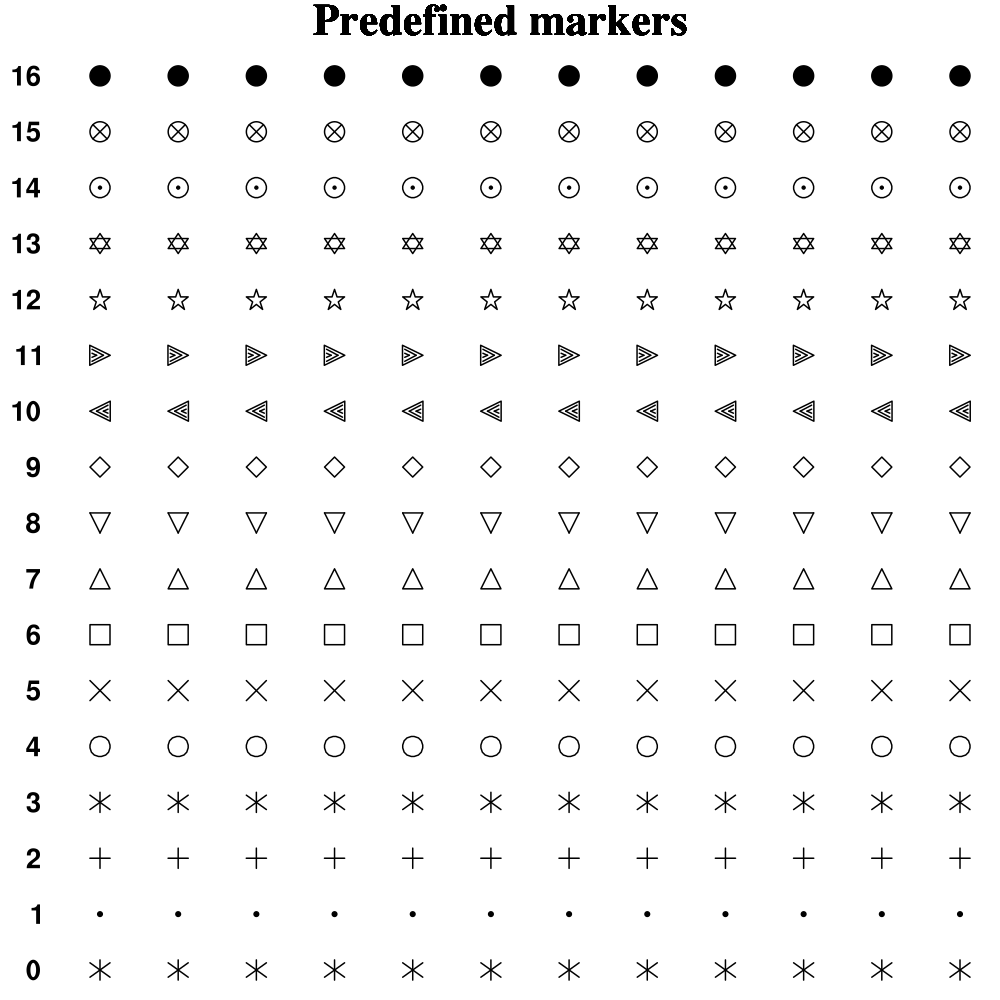
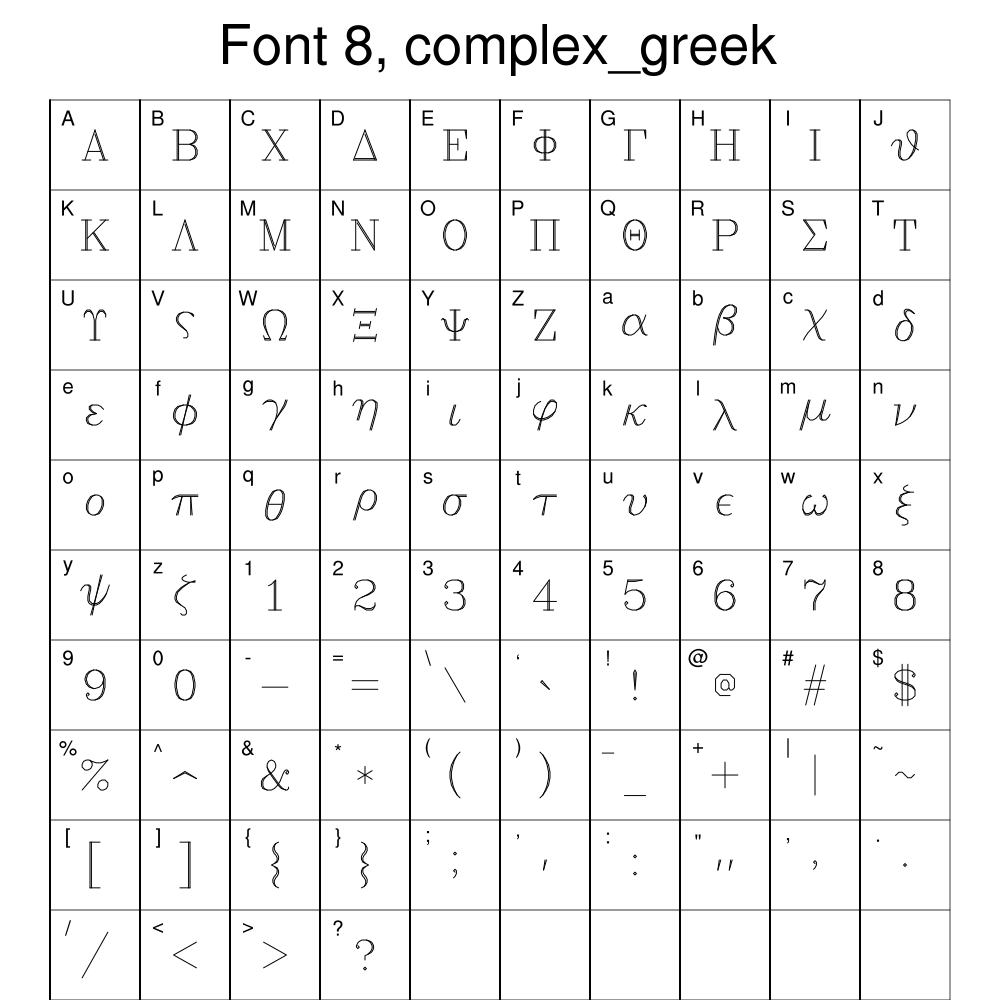
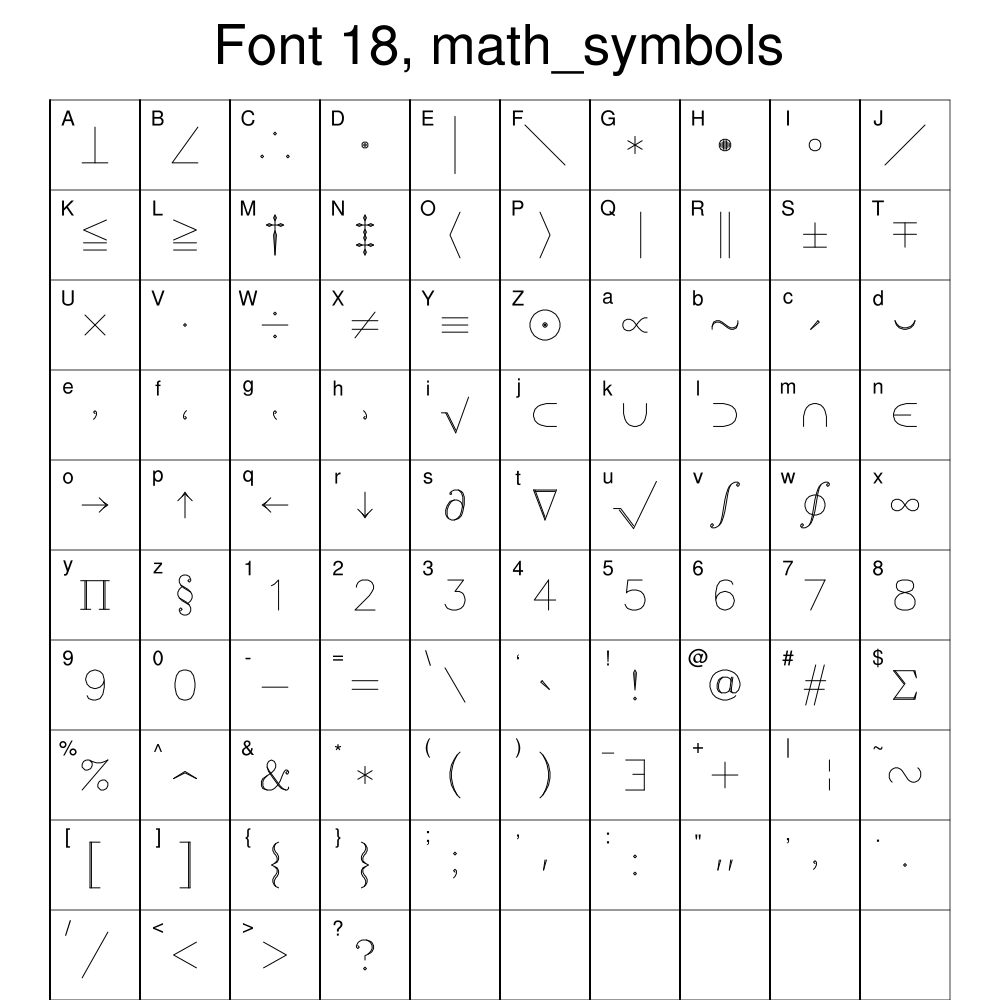
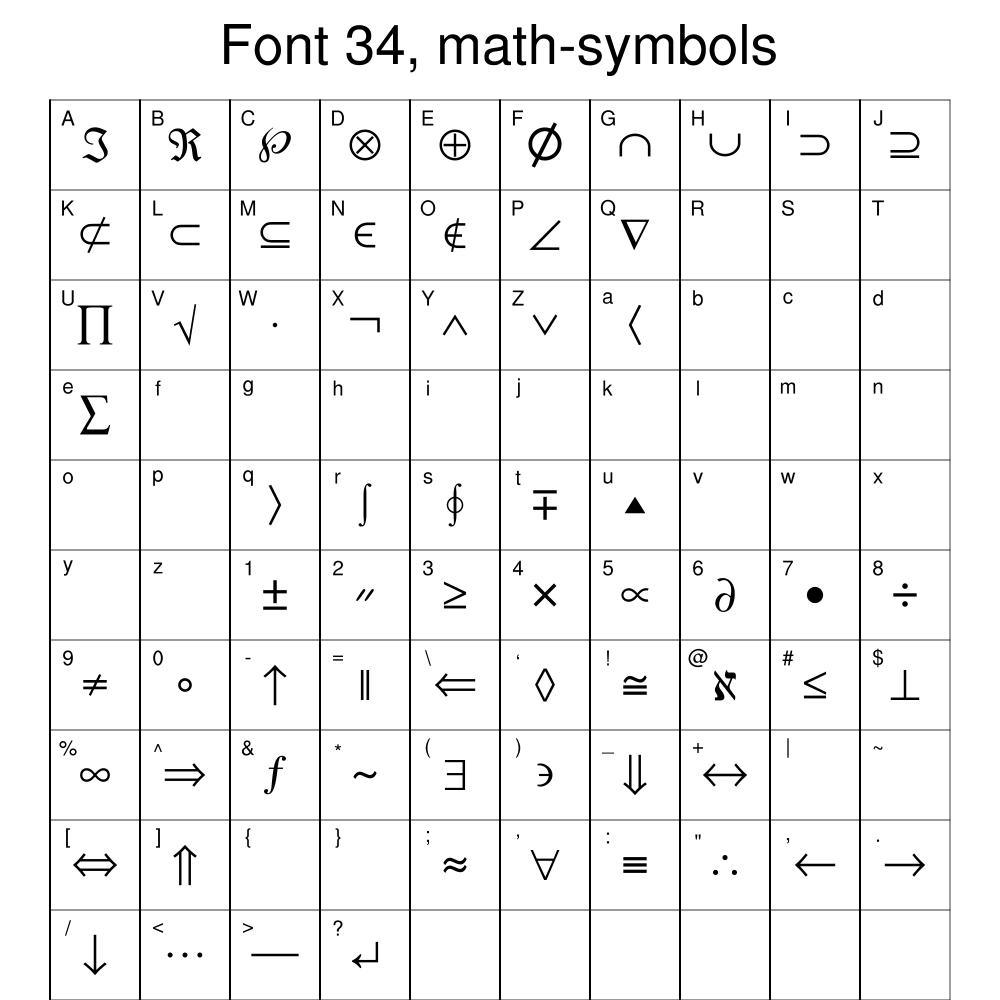
There are numerous
fonts/character sets
in
NCL. As these examples will demonstrate, you change between sets by
using a
function code. The
default code is a ":", but since this is a character that people often
put into their strings, we recommend changing that to a non-used
character like a "~". You can change this on the fly as demonstrated in
these examples, or in your
.hluresfile.

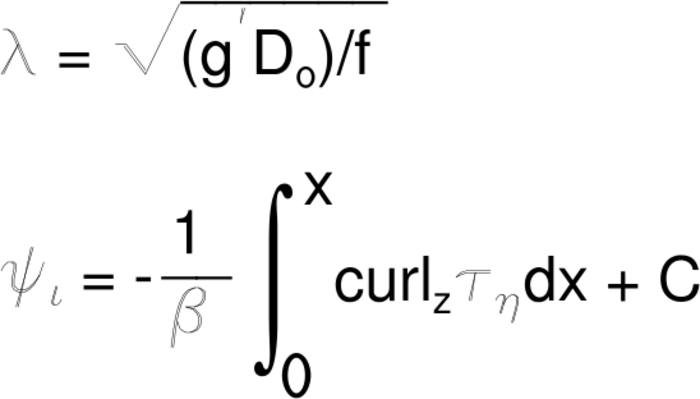
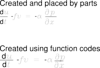
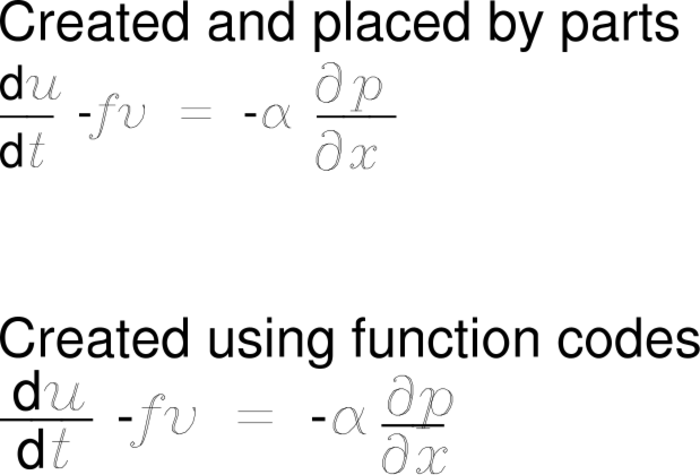 eqn_4.ncl Two ways of drawing a
complicated equation. The first method places the text manually in
ndc coordinates. This code is easily decipherable. The second method
creates a string using function codes. This can then be easily moved
anywhere on the plot, but the code is harder to read.
eqn_4.ncl Two ways of drawing a
complicated equation. The first method places the text manually in
ndc coordinates. This code is easily decipherable. The second method
creates a string using function codes. This can then be easily moved
anywhere on the plot, but the code is harder to read.
When starting a long string like this equation, you establish an initial point. This is usually done with the code :V1: which indicates that the vertical position of what is to follow is on "level 1". The H code moves the text horizontally.
To place text below previous text, it is necessary to back up e.g. :H-30: and drop down .e.g. :V-20:.
In the previous, the numerals represent distance in points. You can also move horizontally and vertically in term of blank lines by adding a Q after the numeral, e.g. :V-2Q:.
Although not demonstrated here, there is also a C function code that puts in a carriage return.
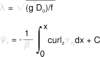
eqn_5.ncl Two more equations that
document a squared root and an integral.
The integral math symbol is by default the same size as the regular text. We blow this up using the X and Y function codes. After this symbol, we need to reset those back to normal.
In both equations, the function code S is used to superscript and the function code B is used to subscript. N returns the text to the main line.
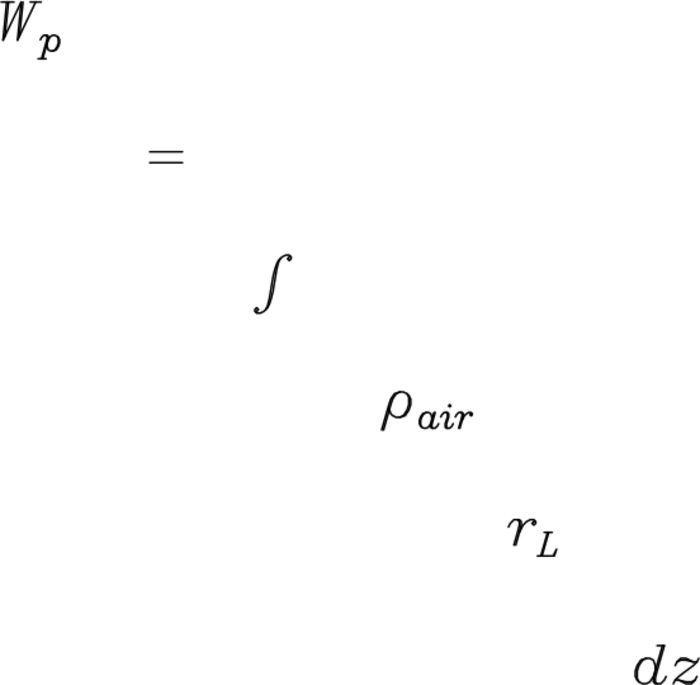
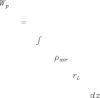
 eqn_6.ncl Mimic the formal definition
of liquid water path shown in the
AMS Glossary.
eqn_6.ncl Mimic the formal definition
of liquid water path shown in the
AMS Glossary.
This creates and plots each item as a separate string. It then combines them into the desired string. In this case, spaces are manually added.